
Editing and Export
How to Export unDraw Illustrations with a Transparent Background
How to export unDraw illustrations with a transparent background: why SVG and PNG keep transparency, what to check in an editor, and the mistakes that add a white box.
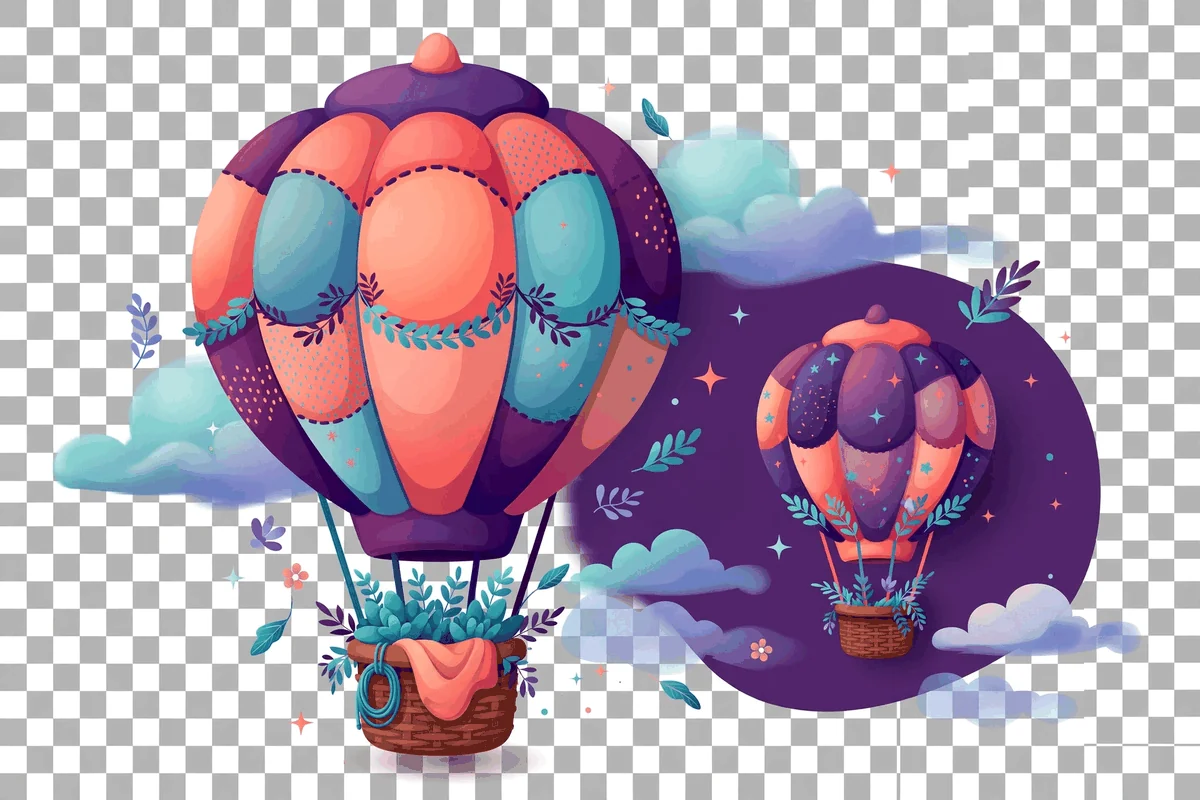
Here is the short answer: an unDraw transparent background is the default, not a special export setting. unDraw illustrations are drawn as scenes floating in empty space, with no background rectangle behind them. As long as you keep the file in a format that supports transparency, the SVG or the PNG, the empty areas stay empty, and whatever you place the artwork on shows through. A white box appears only when something in your workflow adds a background or converts the file to a format that cannot store transparency.
This guide explains why the artwork behaves this way, how to export unDraw illustrations with a transparent background through the tools people commonly use, how to check that transparency survived, and the handful of mistakes that quietly add a white box.
Why unDraw illustrations have no background
Transparency is a property of the file, not of the picture alone. In an SVG, the canvas itself has no color. Unless the file contains a shape drawn behind the scene, there is simply nothing behind the characters and objects. unDraw illustrations are built that way: the artwork is the shapes, and the space around them is genuinely empty. That is why the same file looks correct on a white page, a dark page, or a photograph.
A PNG stores the scene as pixels, but the PNG format also stores an alpha channel, a record of how transparent each pixel is. Pixels that belong to the drawing are fully opaque, pixels in the empty areas are fully transparent, and pixels along the edges sit in between so lines look smooth against any background. Figma's export documentation describes its PNG output as 32 bit with the RGBA color model, where the A is exactly this alpha channel, and the same principle applies to the PNG you download from unDraw.
The format that breaks the chain is JPG. JPG has no alpha channel at all, so any tool that converts your illustration to JPG must invent a color for the empty areas, and it almost always chooses white. If a white box appears around an illustration, a JPG conversion somewhere in the journey is the first suspect.
| Format | Supports transparency | What happens to the empty areas |
|---|---|---|
| SVG | Yes | Nothing is drawn there; the surface beneath shows through |
| PNG | Yes, through the alpha channel | Empty pixels are stored as transparent |
| JPG | No | Empty areas are filled, usually with white |
| GIF | Limited, one fully transparent color | Edges can look rough; rarely the right choice for illustrations |
Getting the transparent file from unDraw
There is nothing to configure on the site. Browse to the illustration, set your accent color, and download. Both the SVG and the PNG preserve the empty background. Choose the SVG if the artwork will be resized, edited, or placed by a developer, and the PNG if it goes straight into a document or a tool that prefers pixel images. Our guide to unDraw SVG vs PNG covers that choice from every angle.
One caution belongs here: do not screenshot the illustration from your browser instead of downloading it. A screenshot captures the pixels on your screen, including the web page behind the artwork, at screen resolution. You get a low resolution picture with the page's background baked in, which is the exact opposite of what you want. The download button exists precisely to give you the clean file.
Keeping transparency when you edit or re-export
Most white box problems are created after the download, when an illustration passes through an editor. Here is how the common routes behave.
In Inkscape
Inkscape is the friendliest case. Its official Beginners' Guide notes that beginners are often surprised to find their exported PNG has a transparent background, because that is the default behavior. Export the illustration and the empty areas stay empty, with no setting to change. If you actually want a solid background in the PNG, you set the page background color to full opacity in Document Properties. Our Inkscape workflow guide, how to edit an unDraw SVG in Inkscape, covers that export panel in context.
In Figma
Figma also exports transparent PNGs as a matter of course, because its PNG format includes the alpha channel. The risk in Figma is different: the illustration may be sitting on a frame that has a fill. Export the illustration layer itself, not the frame, or hide the frame's fill first. If you export a frame with a white fill, the exported PNG faithfully includes that white, and the file is doing exactly what you asked. Select the artwork, then export.
In Canva
Placing an unDraw illustration in a Canva design keeps its transparency inside the editor, so the design's background shows through the scene while you work. The catch comes at download time. Canva's help guidance treats downloading a PNG with a transparent background, and downloading as SVG, as paid plan features, available on plans such as Canva Pro, Teams, Education, and Nonprofits. On a free plan, the downloaded design includes its background. If you need just the illustration with transparency, the cleanest route is to skip the round trip and use the original file from unDraw, which was transparent all along. The full Canva workflow is in our guide on using unDraw illustrations in Canva.
In PowerPoint and documents
An inserted SVG or transparent PNG keeps its transparency on the slide or page, so the document's background shows through. Problems arise only if you export the whole slide as a JPG image, which flattens everything onto an opaque background, or if you place the illustration inside a shape or picture placeholder that has its own fill. Keep the artwork as a free floating picture and it stays clean, as described in our PowerPoint guide.
Putting transparency to work
Transparency is not just the absence of a problem. Used deliberately, it is what makes an illustration feel native to your design instead of pasted onto it. Because the scene has no edges of its own, it can sit on a brand colored panel, overlap the corner of a photograph, or rest directly on the page background of a website, and in each case the boundary between artwork and layout disappears. Designers rely on this when they place an illustration half inside a colored section and half outside it, an effect that is impossible with a boxed image.
There are two judgment calls to make. The first is contrast. unDraw scenes use light tints and pale details alongside their strong shapes. On a very light background those pale parts can fade, and on a very dark background the darker shapes can sink. Before committing to a background, view the actual illustration on it at final size, not a different scene and not at full zoom. If parts disappear, adjust the background or pick a scene with stronger shapes; do not outline the artwork to force it to work.
The second call is consistency. If a page or deck mixes transparent illustrations with boxed photographs, the contrast in styles can look accidental. Give photographs their own clear treatment, such as consistent frames or rounded corners, so the two kinds of imagery read as a deliberate system. Transparency gives you freedom; a simple rule for how you use it keeps the result coherent.
How to check that transparency survived
Do not trust a white preview. Most image viewers display files on a white background, so a perfectly transparent file and a white boxed file look identical until you test them. Use one of these checks instead:
- The colored slide test. Place the exported file on a strongly colored background in any editor or presentation. If the color shows through the open areas of the scene, transparency survived. If a white rectangle appears, it did not.
- The checkerboard test. Many editors show transparency as a gray and white checkerboard when a layer or file is opened directly. If your tool offers that view, it settles the question at a glance.
- The format check. Confirm the file extension is .png or .svg. A .jpg file cannot be transparent, whatever the preview suggests.
- The edge check. Zoom in on a curved edge against a dark background. Smooth, slightly blended edges are normal anti aliasing. A hard rectangular boundary is the white box.
Run the colored slide test on the final file, in the final tool, before you hand work to anyone. Transparency is a property of the whole chain, and the last step is the one that counts.
Mistakes that add a white box
| Mistake | Why it adds a background | What to do instead |
|---|---|---|
| Screenshotting the illustration from the website | The screenshot captures the page behind the artwork | Use the download button on unDraw |
| Converting or saving as JPG | JPG has no alpha channel, so empty areas are filled with white | Keep SVG or PNG from start to finish |
| Exporting a filled frame instead of the artwork | The frame's fill is part of the export | Select and export the illustration layer itself |
| Downloading a Canva design on a free plan and expecting transparency | Transparent background downloads are a paid plan feature in Canva | Use the original unDraw file, which is already transparent |
| Adding a background shape in an editor "to see it better" | The shape becomes part of the artwork | Put test backgrounds on a separate layer and hide it before export |
| Pasting through tools that flatten images | Some clipboard and chat tools convert pasted images to opaque formats | Transfer the actual file, not a pasted copy |
Frequently asked questions
Can I add a background later if I change my mind?
Yes, and this is the right order to work in. A transparent file can sit on any background you add in your editor, slide, or page. An opaque file cannot easily give its background back. Keep the master file transparent and add backgrounds per use.
Does the transparent background affect file size or quality?
No. The alpha channel is part of how PNG stores the image, and the SVG simply has nothing drawn in the empty areas. Keeping transparency costs you nothing in sharpness. If an exported PNG looks soft, the cause is pixel size, not transparency; our guide on fixing a blurry unDraw PNG explains that side of things.
Why does the illustration look fine in my editor but boxed in the final tool?
Because one step in between flattened it, most often a conversion to JPG or an export of a filled frame. Test the exact final file with the colored slide test, then work backwards through the steps to find where the background appeared.
Someone sent me an unDraw illustration with a white background baked in. Can I remove it?
Sometimes, but it is the hard way round. If the sender still has the original download, ask for that file instead; it takes them a moment and gives you a perfect result. Removing a baked in background with selection tools works on simple scenes but chews into the pale tints and smooth edges that make the artwork look good, and the result rarely matches the original. Prevention beats repair at every step of this workflow.
Do I need a different export for dark mode or dark slides?
No. The same transparent file works on light and dark surfaces, which is one of its main advantages. What can change with the background is which scene reads best, since pale details behave differently on dark colors. Test the specific illustration on the specific background, as described above, rather than preparing separate files.
Quick checklist
- Download from unDraw; never screenshot the artwork.
- Keep the file as SVG or PNG at every step.
- In editors, export the artwork itself, not a filled frame or page.
- In Canva, remember transparent downloads are a paid plan feature; the original file is already transparent.
- Verify the final file on a colored background before delivering it.
Sources and further reading
- Inkscape Beginners' Guide: Exporting a PNG file: documents that Inkscape PNG exports have a transparent background by default and how to set a page background color instead.
- Figma Help Center: Export formats and settings for static designs: describes PNG export as a 32 bit RGBA format, including the alpha channel.
- unDraw license: the terms that apply to the illustrations you export.
- How to use unDraw PNG illustrations in WordPress: transparent artwork on web pages.